Team Management
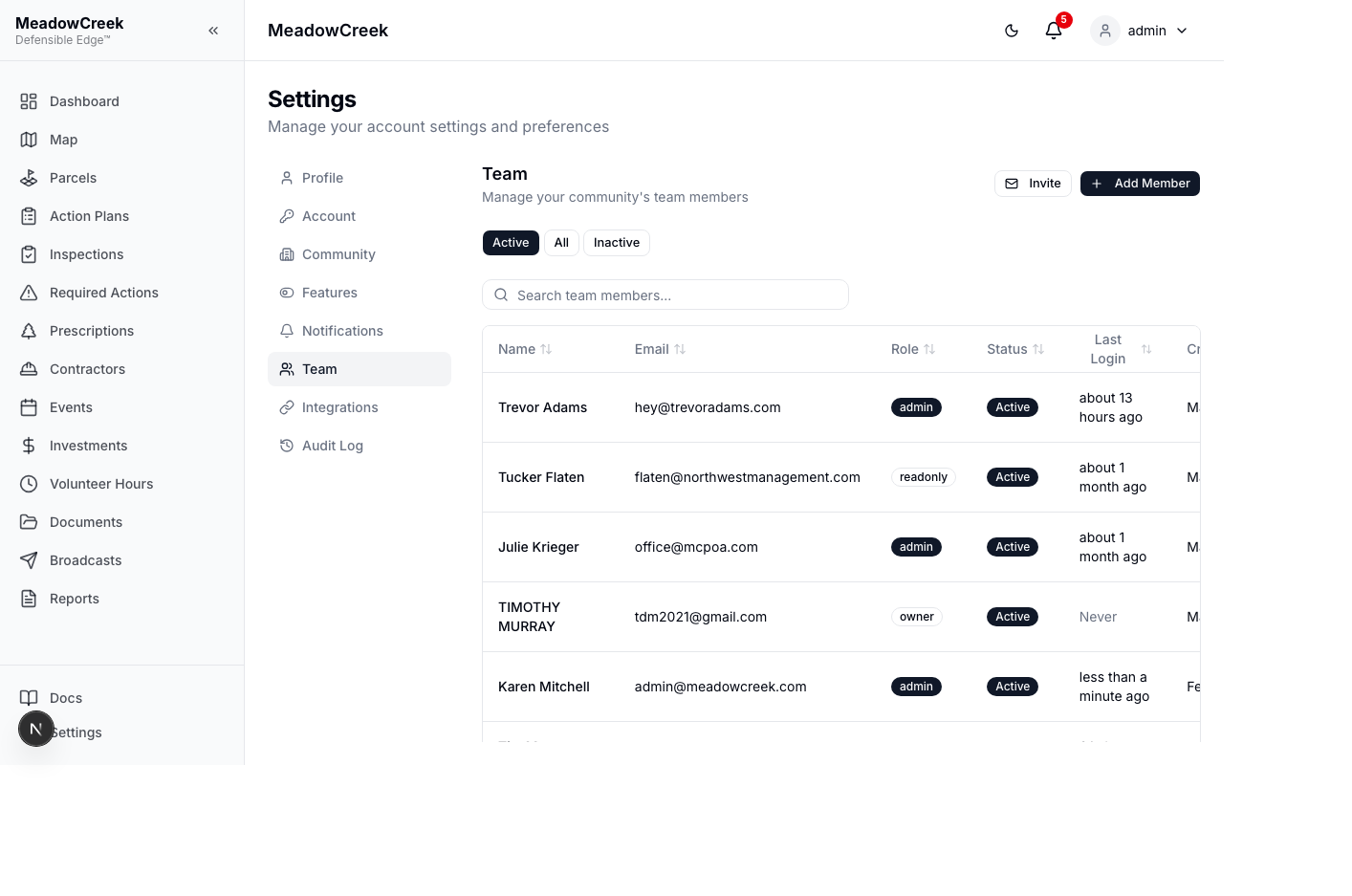
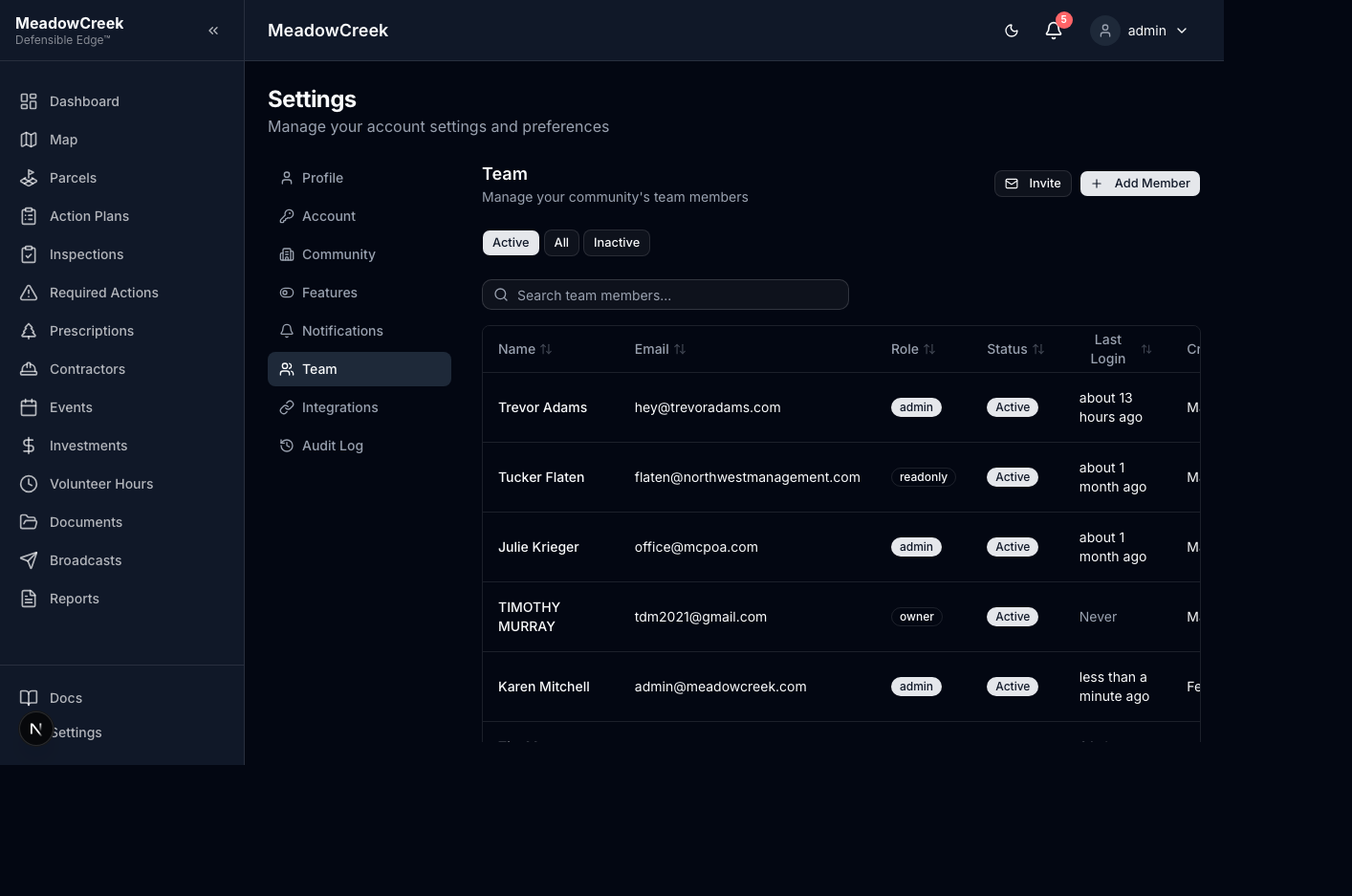
Manage team members and roles. Admin only.
Active Users
The team page shows all active community users with their:
- Name and email
- Assigned role (Admin, Staff, Read-only, Owner)
- Status
Inviting New Members
- Click Add Member or Invite via Email
- Enter the person’s email address
- Select their role:
- Admin — Full platform access including settings, team management, and deletions
- Staff — Operational access to create and manage inspections, plans, contractors, etc.
- Read-only — View-only access to all community data
- Owner — Limited access to view their properties and participate in events, volunteer hours, and projects
- Send the invitation
Invited users receive an email with instructions to create their account and join the community.
Pending Invitations
View outstanding invitations that haven’t been accepted yet. Each invitation shows:
- Invitee email address
- Assigned role
- Expiration date
Changing Roles
Admins can change a team member’s role at any time by editing their profile from the team page. Role changes take effect on the user’s next login.
Last updated on