Creating & Editing Events
Events run through a simple lifecycle: create → publish → run → close. This page walks through each step.
Creating a new event
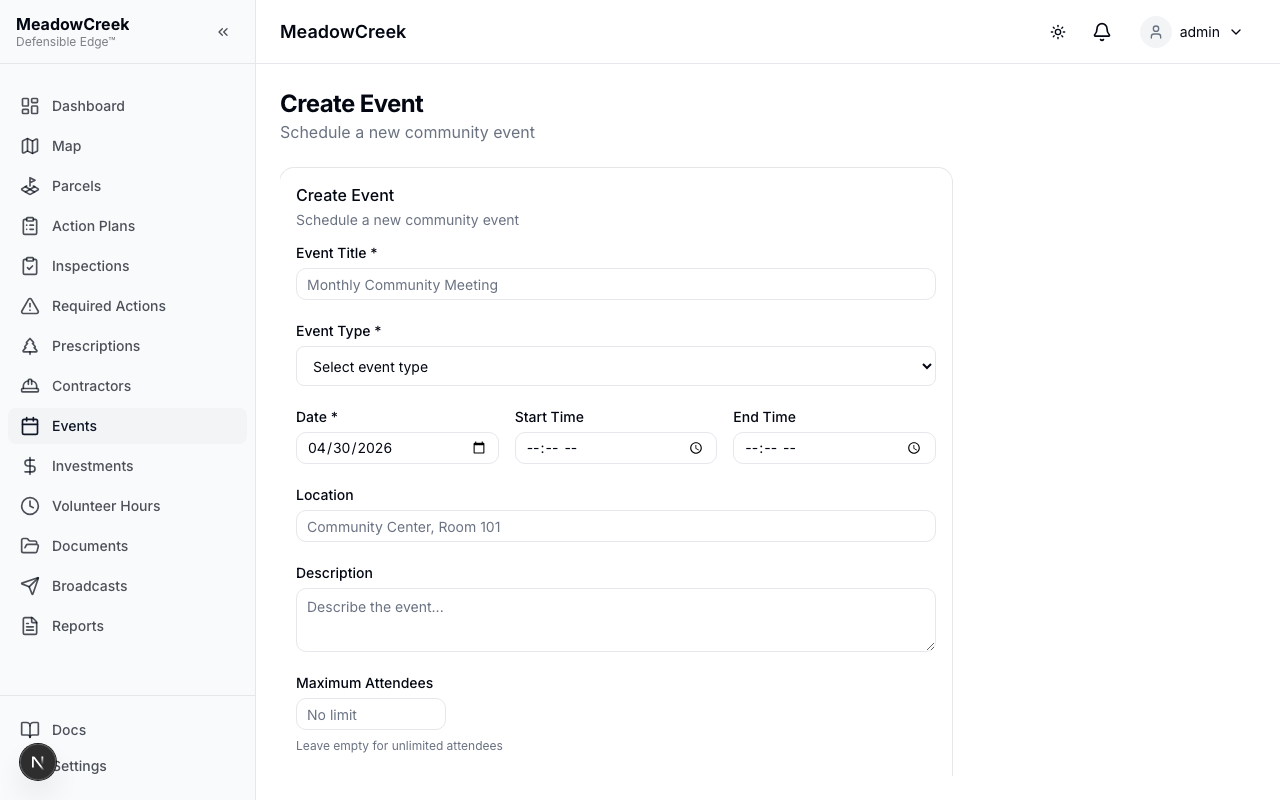
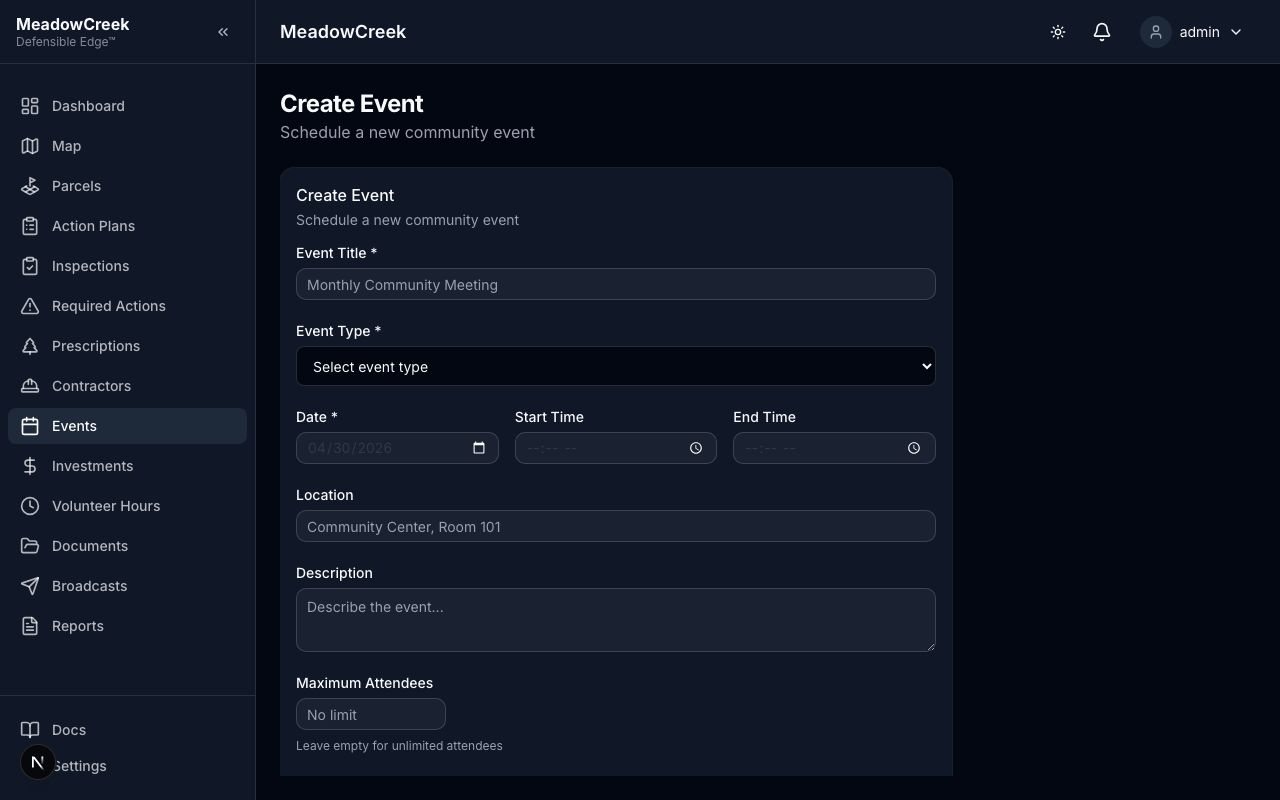
Click Create Event from the events list to open the new-event form. Required fields are title, start date/time, and event type; everything else is optional.
Event detail
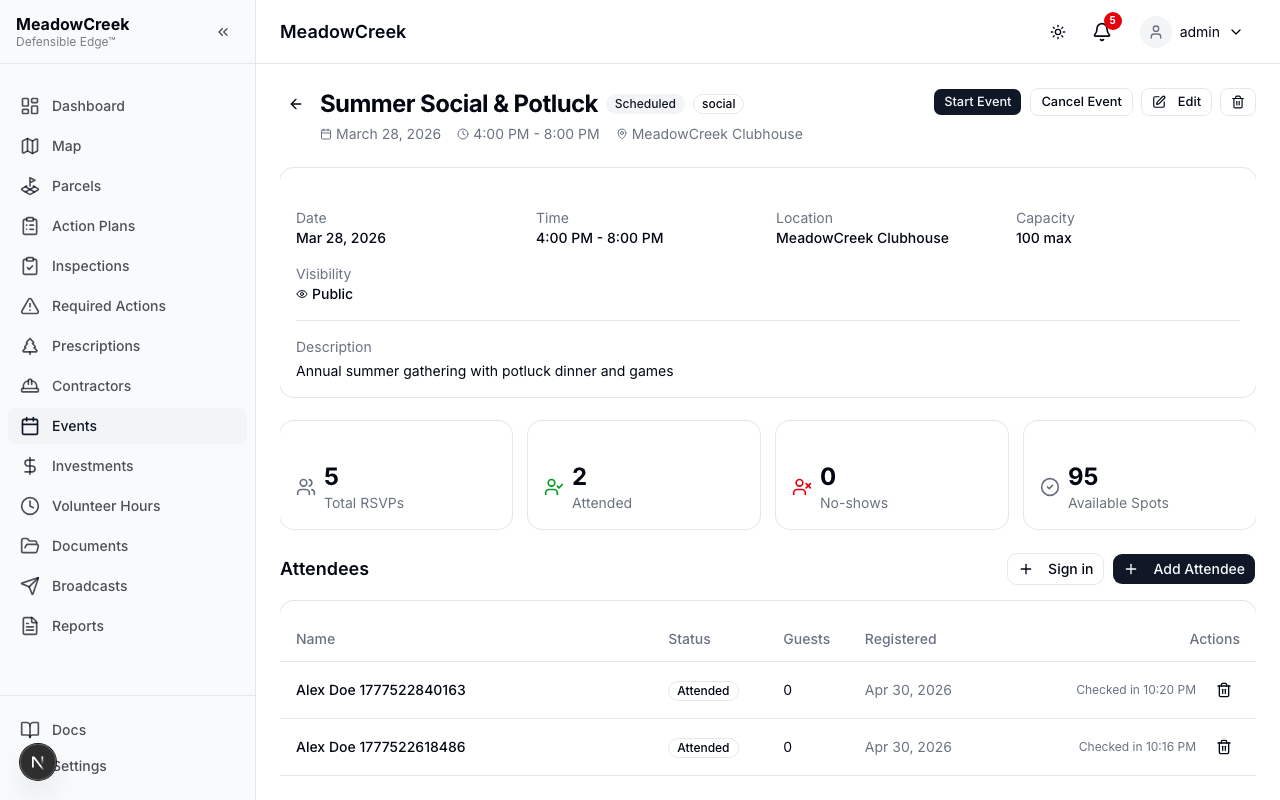
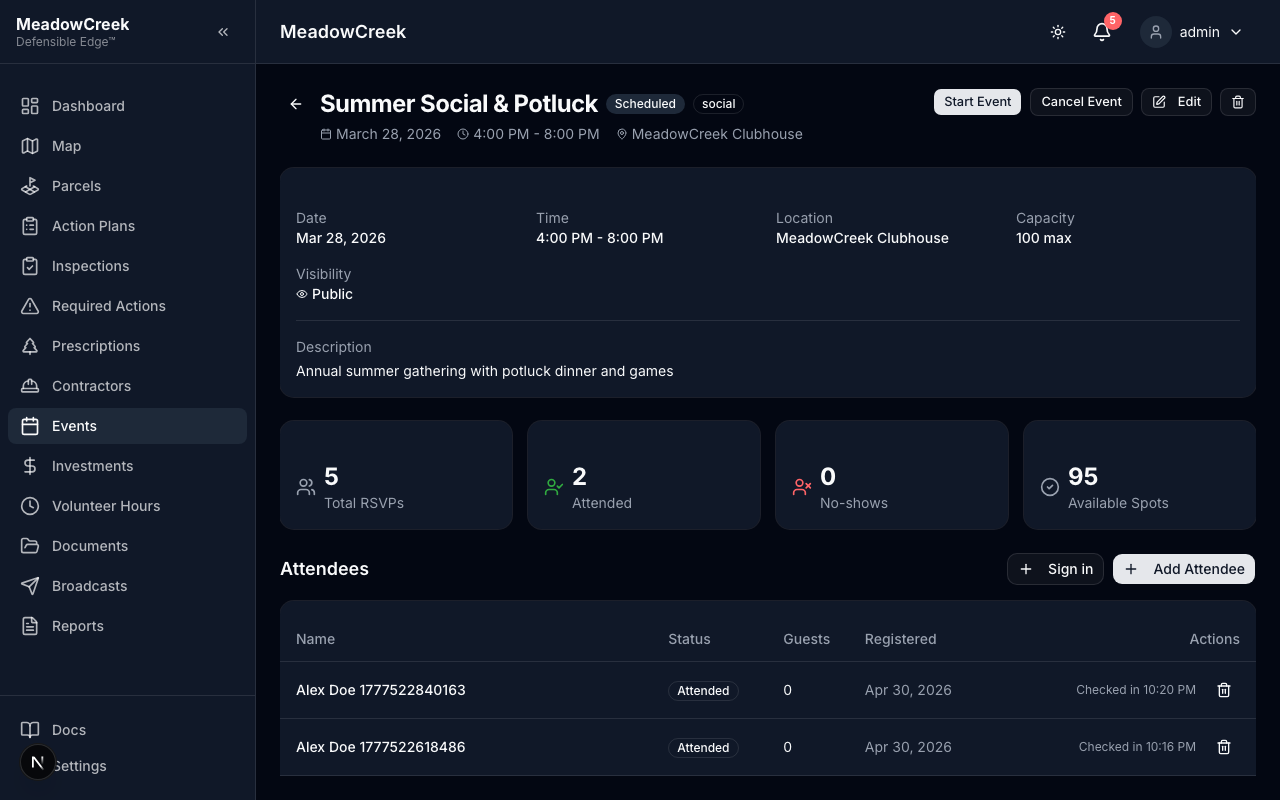
The detail page shows the full schedule, location, description, RSVP counts, and the attendee table.
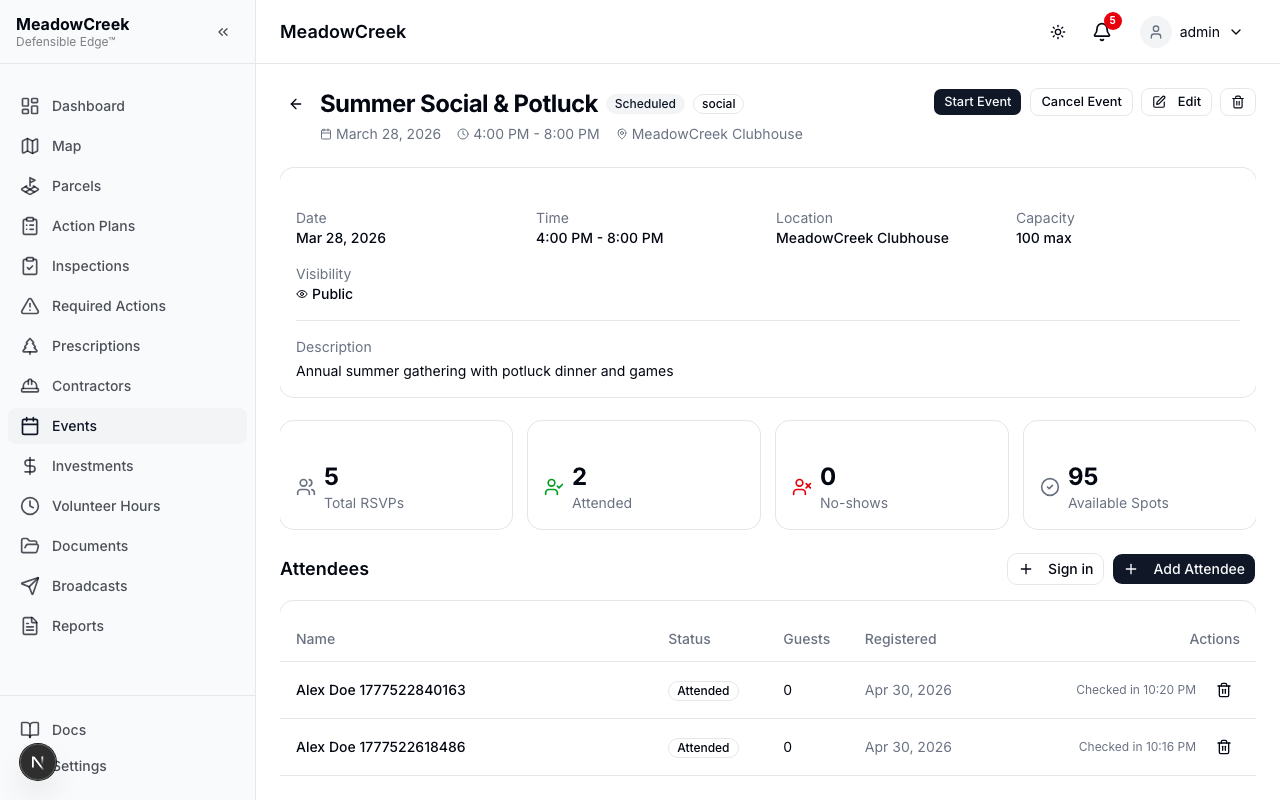
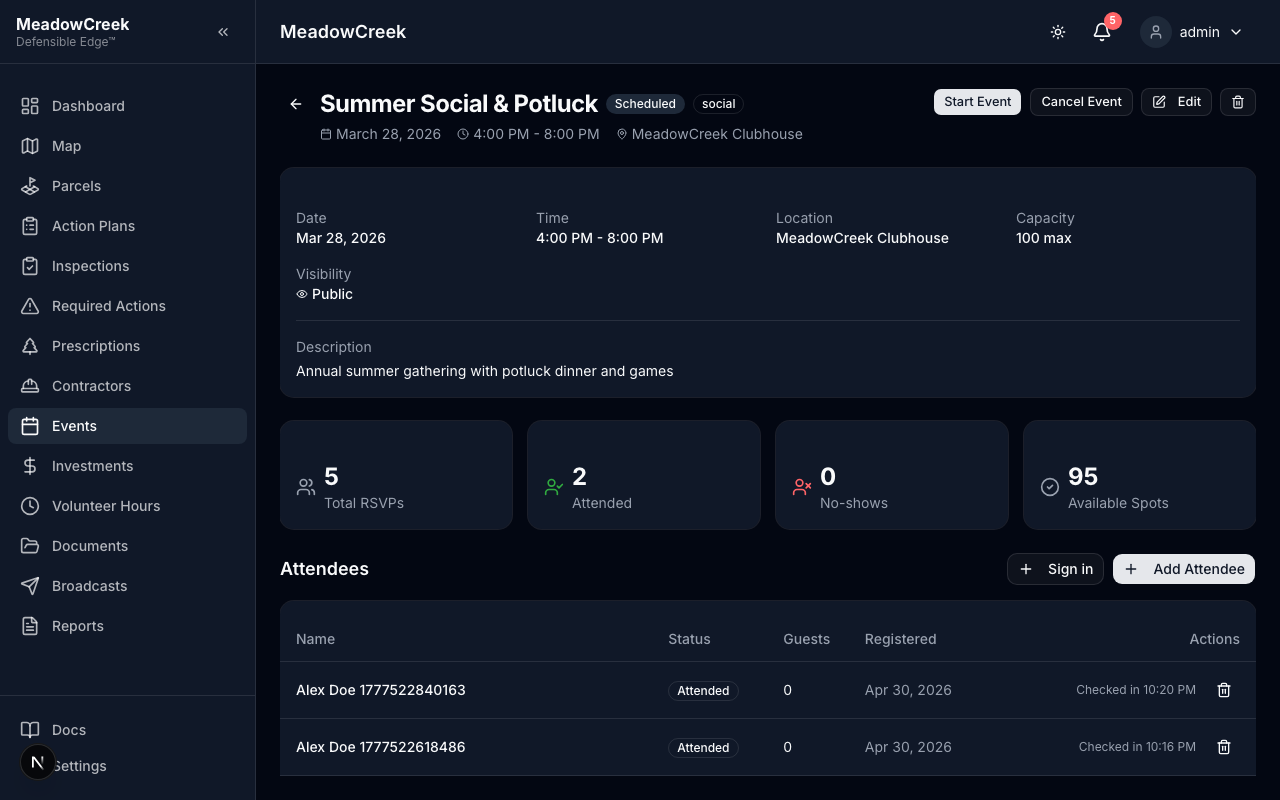
Scrolled to show the Attendees panel:
Editing an event
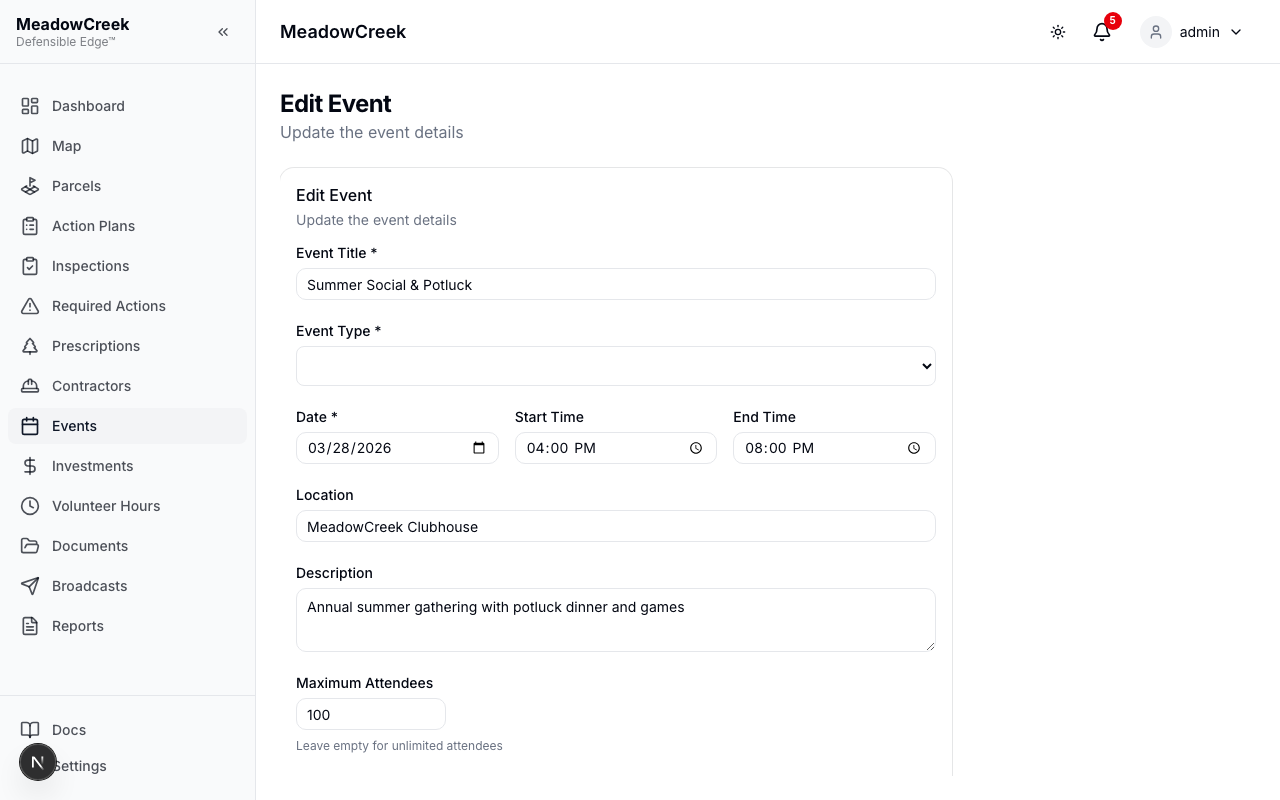
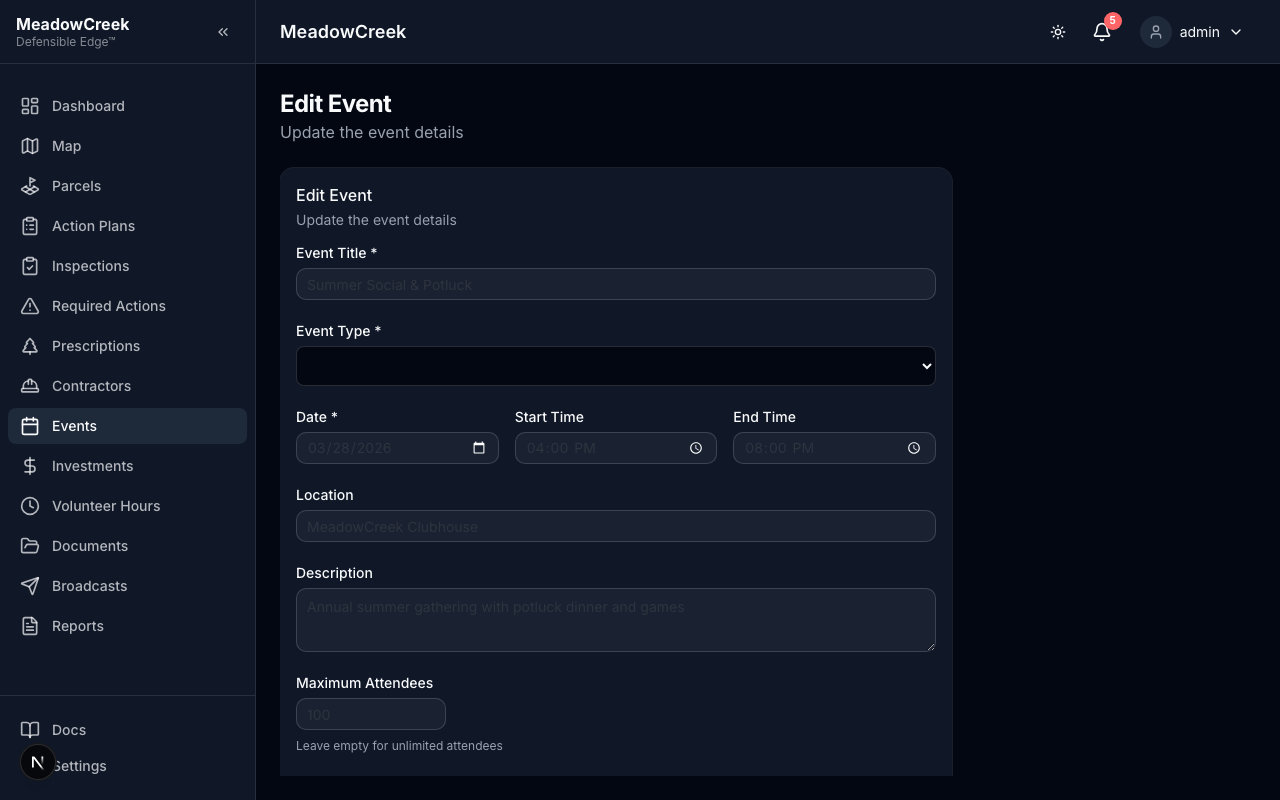
Click the Edit button on the detail page. The form is pre-filled with the current values; change what you need and save.
Cancelling an event
From the detail page, click Cancel Event. The event is marked cancelled and any RSVPs are notified per your broadcast preferences.
Related
- Sign in attendees in person — for day-of capture
- Volunteer Hours — log hours worked at an event
Last updated on