Creating a Broadcast
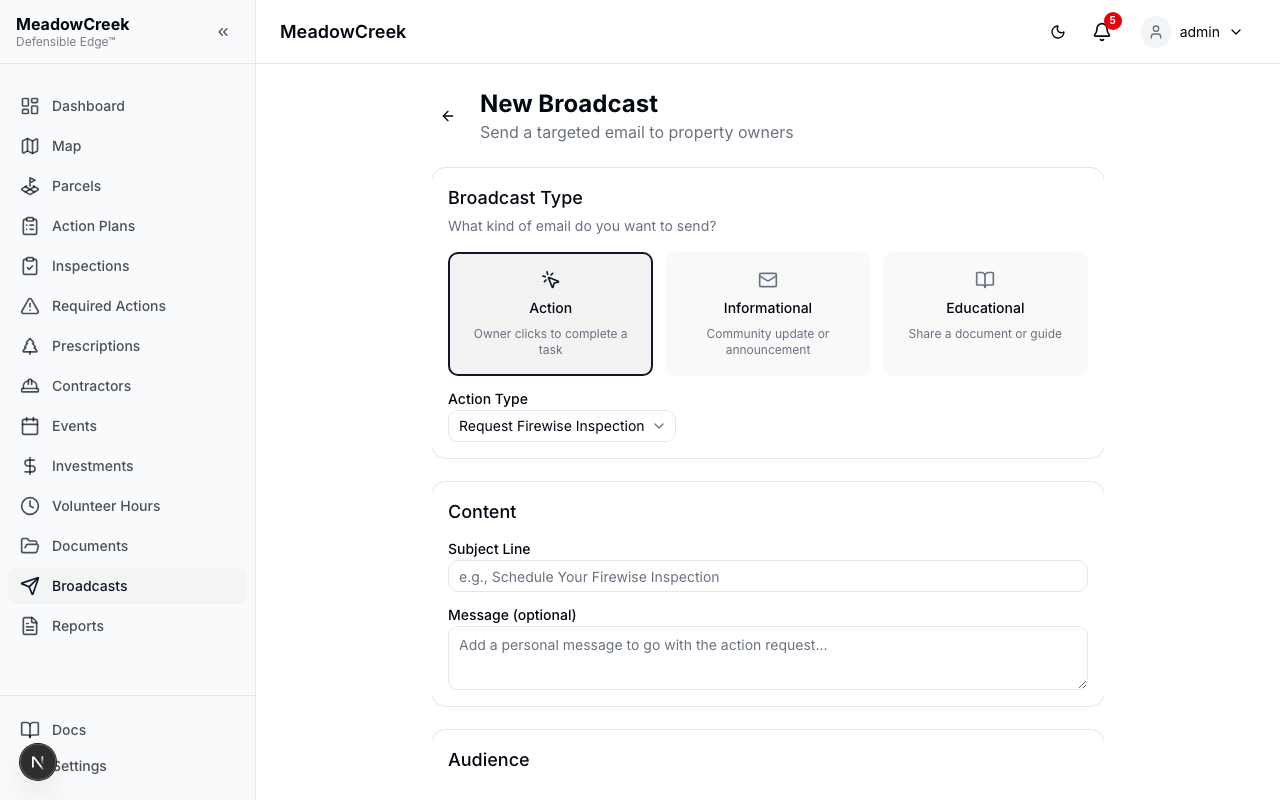
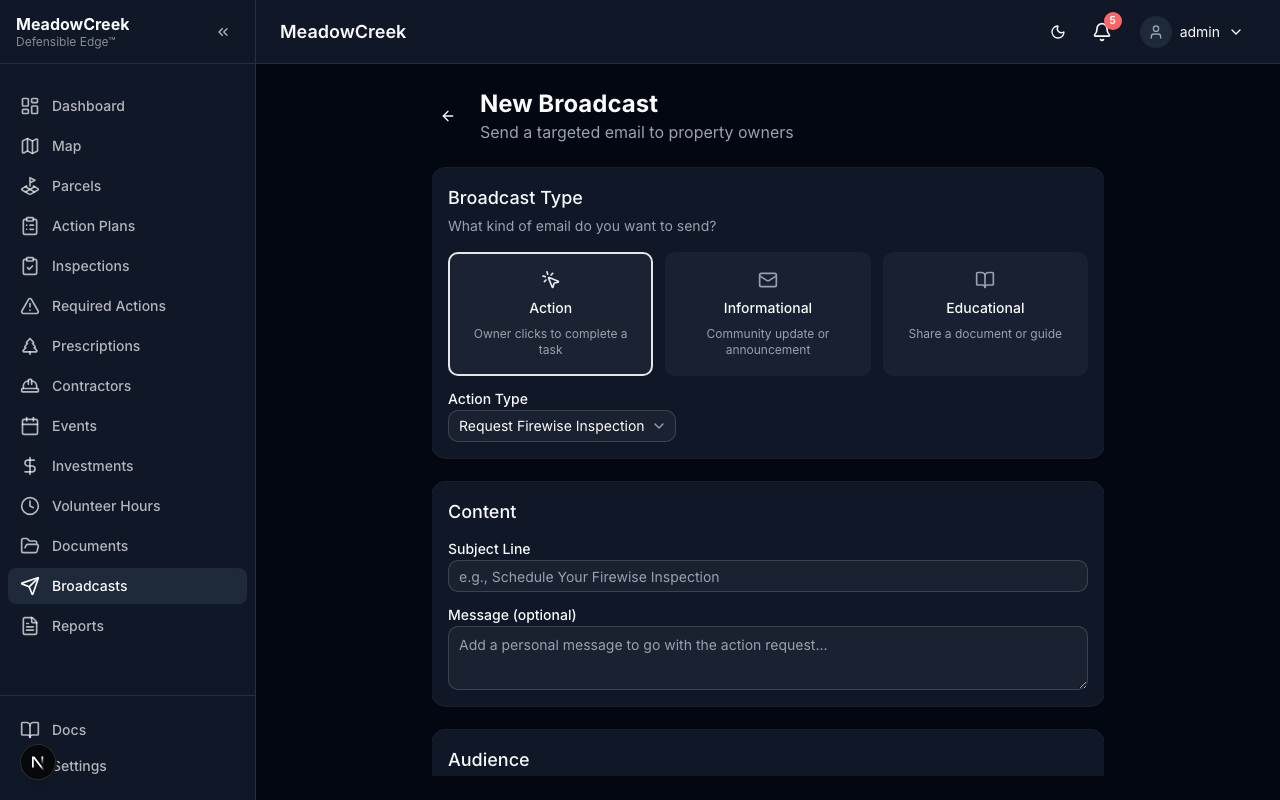
Step 1: Choose a Broadcast Type
Navigate to Broadcasts in the sidebar and click New Broadcast. Select one of three types:
- Action — Owners click a magic link to complete a task. Choose an action type:
- Request Firewise Inspection — Owner requests an inspection for their property
- Enroll in Community Project — Owner adds their parcel to a project
- Report Tree Issue — Owner reports a diseased, hazardous, or dead tree
- Informational — Send a community update or announcement. No action required from owners.
- Educational — Share a community document (PDF guide, checklist) with an optional action CTA.
Step 2: Write Your Content
- Subject Line — Keep it clear and specific (e.g., “Schedule Your Fall Firewise Inspection”)
- Message — For action broadcasts, explain why the owner should take action. For informational broadcasts, this is the full email body.
Step 3: Select Your Audience
Choose who should receive the broadcast:
| Audience Filter | Description |
|---|---|
| All Property Owners | Every owner with an email address on file |
| By Subdivision | Owners with parcels in a specific subdivision |
| By Project | Owners whose parcels are linked to a specific project |
| By Inspection Status | Owners whose parcels have never been inspected, or were last inspected before a given date |
Click Preview Audience to see the count and a list of recipients before sending.
Step 4: Review and Send
- Review the recipient count and list
- Click Send Broadcast
- Confirm in the dialog: “Send to X owners?”
- The broadcast is sent and you’re redirected to the detail page
Tips
- Preview your audience before sending to avoid surprises
- Use clear, actionable subject lines — owners decide whether to open based on the subject
- For action broadcasts, explain in the message body what happens after they click
- The confirmation dialog shows the exact recipient count — double-check before confirming
Last updated on