Parcels
Navigate to Parcels in the sidebar to view all properties in your community.
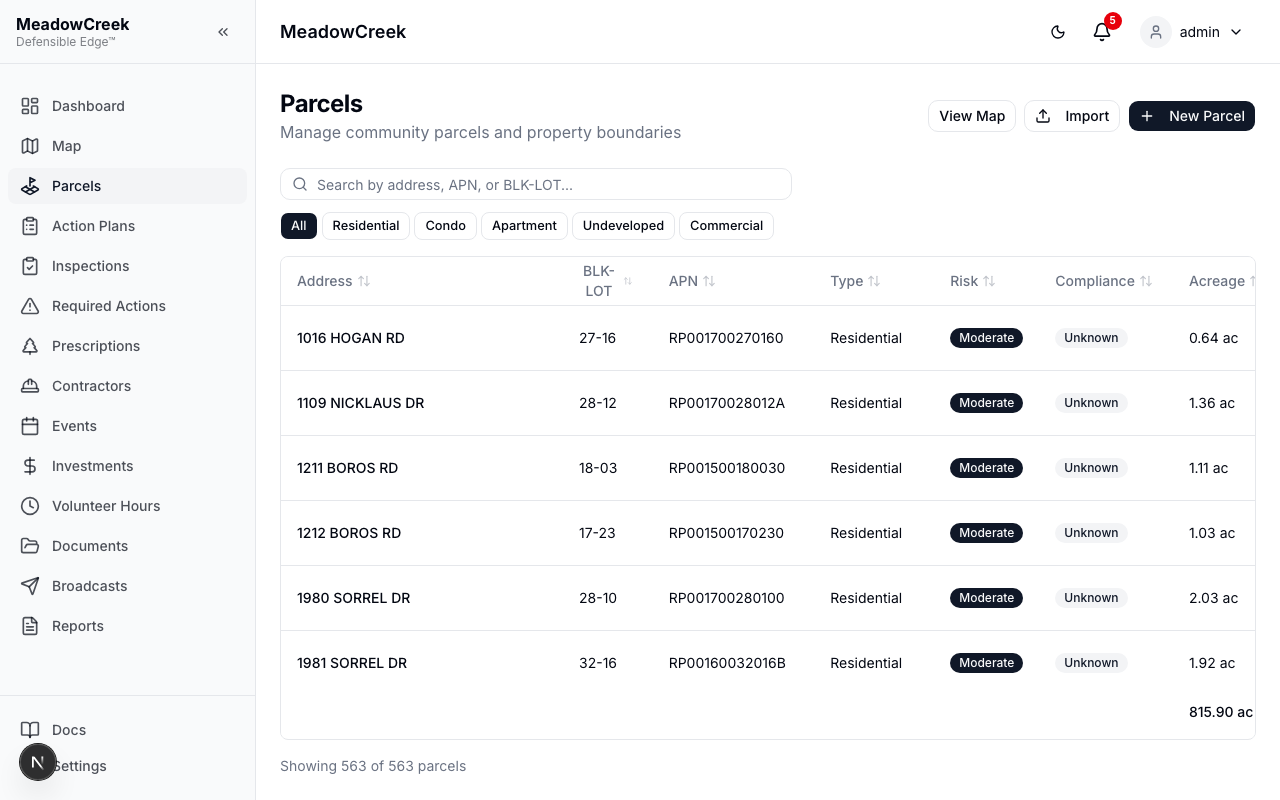
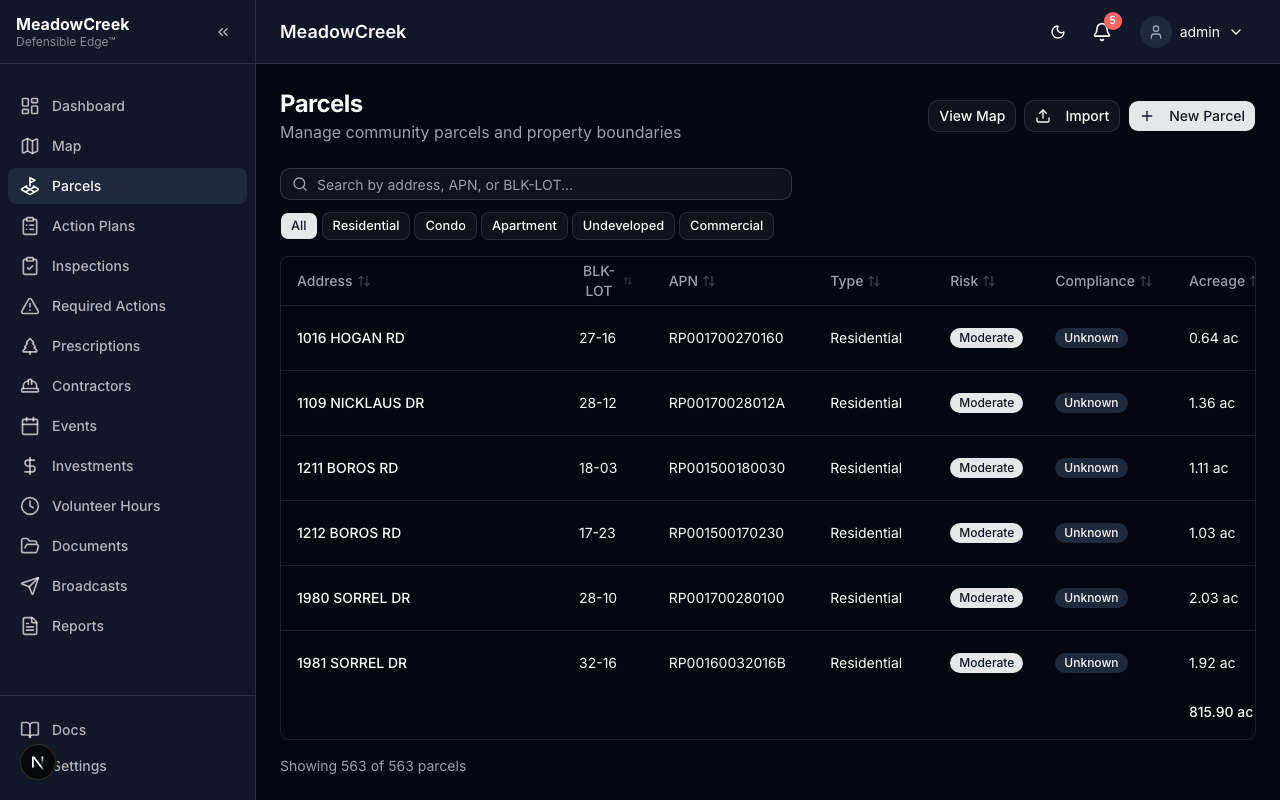
Parcel Table
The parcels table displays key information for each property:
| Column | Description |
|---|---|
| Parcel Number / Block-Lot | Unique identifier for the parcel |
| Address | Street address of the property |
| Parcel Type | Residential, Commercial, Vacant Land, or Condo |
| Risk Level | Low, Moderate, High, or Extreme |
| Compliance Status | Current compliance state |
| Acreage | Property size |
| Inspection Count | Number of inspections conducted on this parcel |
Click any row to view the full parcel detail page.
Adding Parcels
There are two ways to add parcels:
- Manual Entry — Click New Parcel and fill in the parcel details (address, type, acreage, block-lot number)
- CSV Import — Click Import to upload a CSV file with parcel data. The import wizard lets you map your CSV columns to platform fields.
Parcel Map
Click View Map to see an interactive map of all parcels in your community. The map displays parcel boundaries and color-codes parcels by risk level or inspection status.
Editing BLK-LOT Values
Admin users can quickly edit BLK-LOT identifiers directly in the parcels table — click any BLK-LOT value to enter edit mode, type the new value, and press Enter to save (or Escape to cancel). A toast notification confirms the change, and an audit log entry is created.
The system prevents duplicate BLK-LOT values within the same community. If you enter a BLK-LOT that already exists on another parcel, an error message will appear.
Tip: Correct BLK-LOT values before importing property owners from CSV — the import tool uses BLK-LOT as the primary matching key.
Editing Parcels
Click a parcel row to open its detail page. From there, you can:
- Update parcel information (address, type, acreage)
- View linked inspections and findings
- See associated property owners
- View parcel photos
Deleting Parcels
Admin users can delete a parcel from its detail page by clicking the trash icon button. A confirmation prompt will appear before the parcel is permanently removed. Any inspections linked to the parcel will be unlinked (not deleted).
Tip: Deleting a parcel is permanent. If you want to keep the parcel data but mark it as no longer relevant, consider setting it to inactive using the Edit page instead.
Role note: Only Admin users can delete parcels. Staff users can add and edit parcels but cannot delete them. Read-only and Owner users can view parcel information.