Renewal Reports
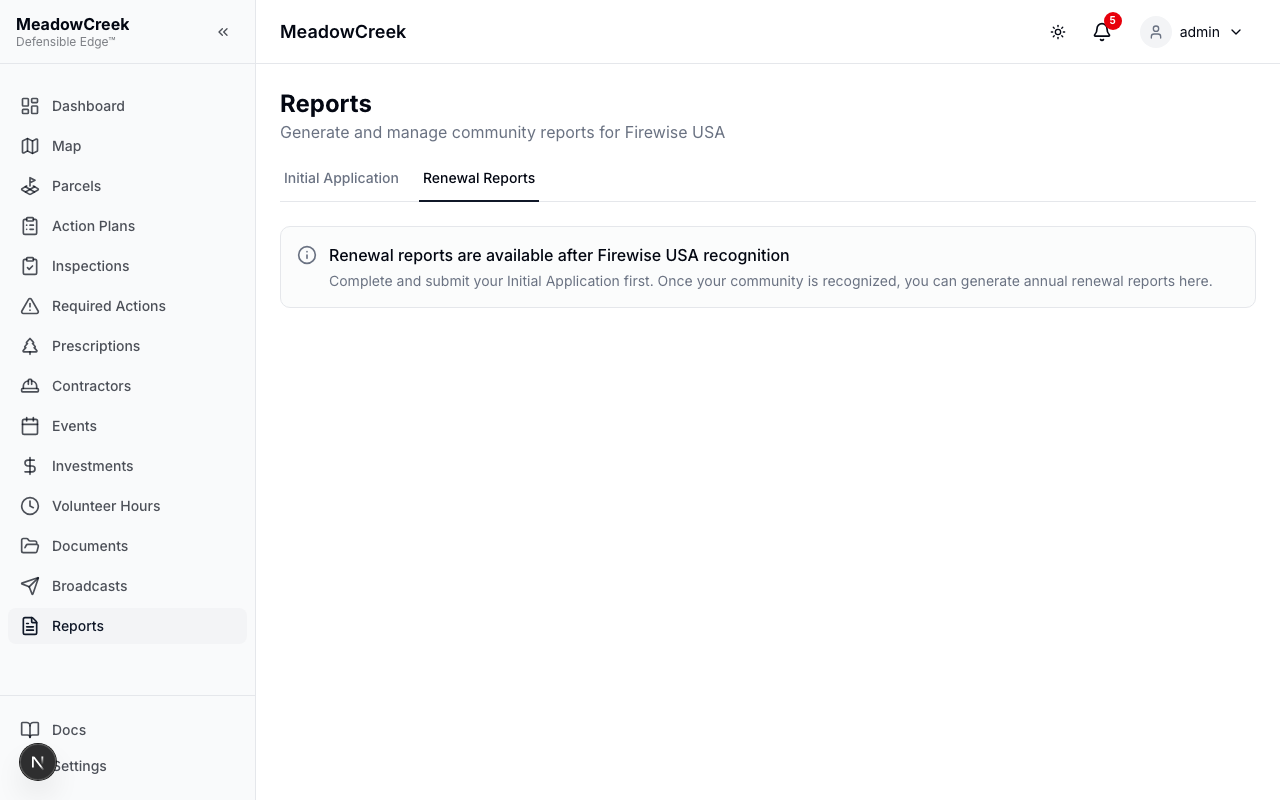
After your community achieves Firewise USA® recognition, use Renewal Reports to generate annual documentation for maintaining your recognition status.
Generating a Renewal Report
- Navigate to the Renewal Reports tab
- Click New Report
- Select the reporting period (start and end dates for the year)
- The report automatically aggregates:
- Total volunteer hours and hours per dwelling unit
- Financial investments in mitigation
- Community events held
- Number of participating residents
- Compliance score
Renewal Report Data
| Column | Description |
|---|---|
| Year | Reporting year |
| Period | Start and end dates |
| Volunteer Hours | Total approved hours for the period |
| Investments | Total financial investment |
| Events | Number of community events |
| Residents | Participating resident count |
| Compliance Score | Overall compliance rating |
| Status | Report status |
Recognition Status
Your community’s Firewise recognition status is managed in Settings > Community and affects what’s available on the Reports page:
| Status | Description |
|---|---|
| Not Recognized | Initial state — can create Initial Applications |
| Applying | Application has been submitted — awaiting NFPA response |
| Recognized | Community has Firewise recognition — can generate Renewal Reports |
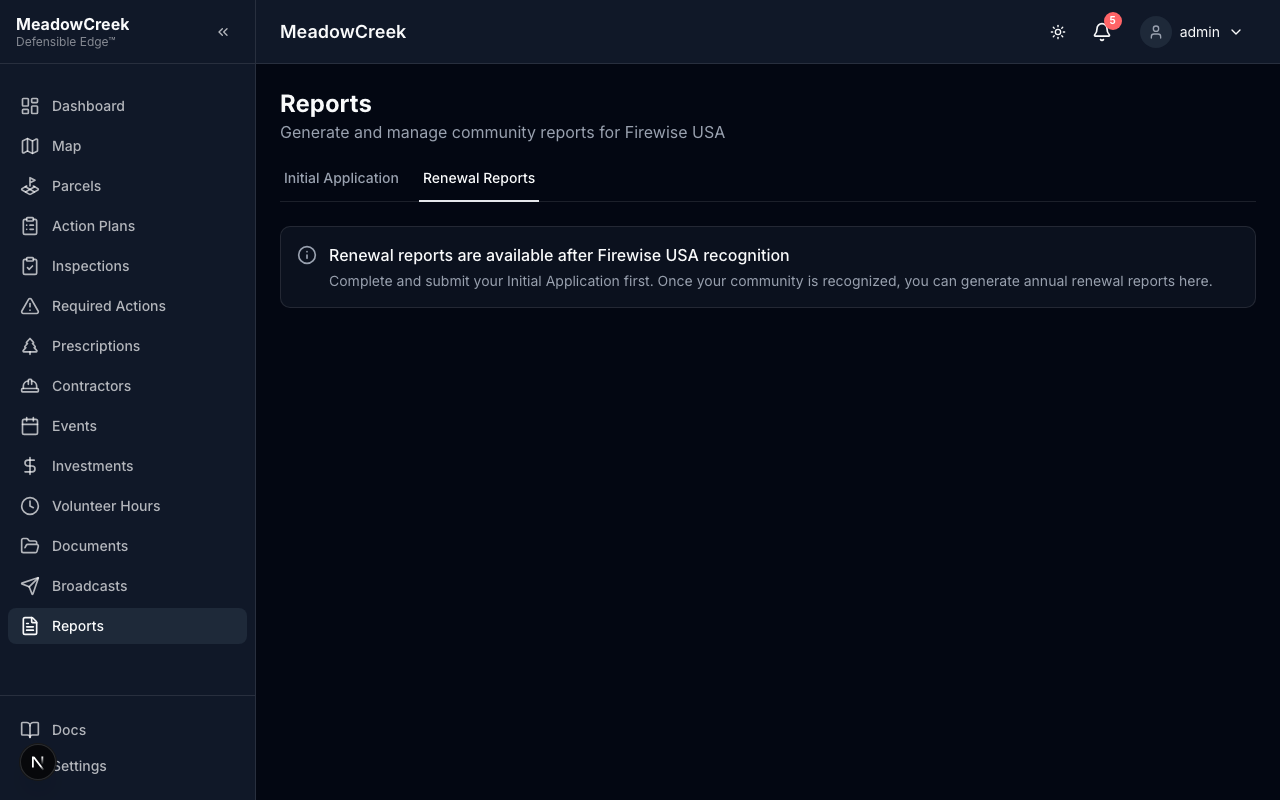
Communities that are not yet recognized will see an informational banner on the Renewal Reports tab explaining that renewal reports are available after achieving Firewise recognition.
Role note: All users can view reports. Only Admins can finalize and submit initial applications. Only Admins can generate renewal reports.
Tip: Complete Steps 1-3 manually first, then review the auto-populated data in Steps 4-7 before finalizing. The platform does the heavy lifting by pulling from your existing data.